Spending long hours at a desk really takes a toll on the body, especially if you’re not paying attention to how you set up your workspace. I’ve seen so many folks (myself included) fall into the trap of uncomfortable postures, desk setups that just don’t fit, or habits that slowly lead to neck cramps and aching backs. The good news? Most common office ergonomics mistakes to avoid are easy once you know what to look out for. I’m sharing the most common pitfalls, tips for fixing them, and some insight into why getting your office ergonomics right makes a bigger difference than you might think.
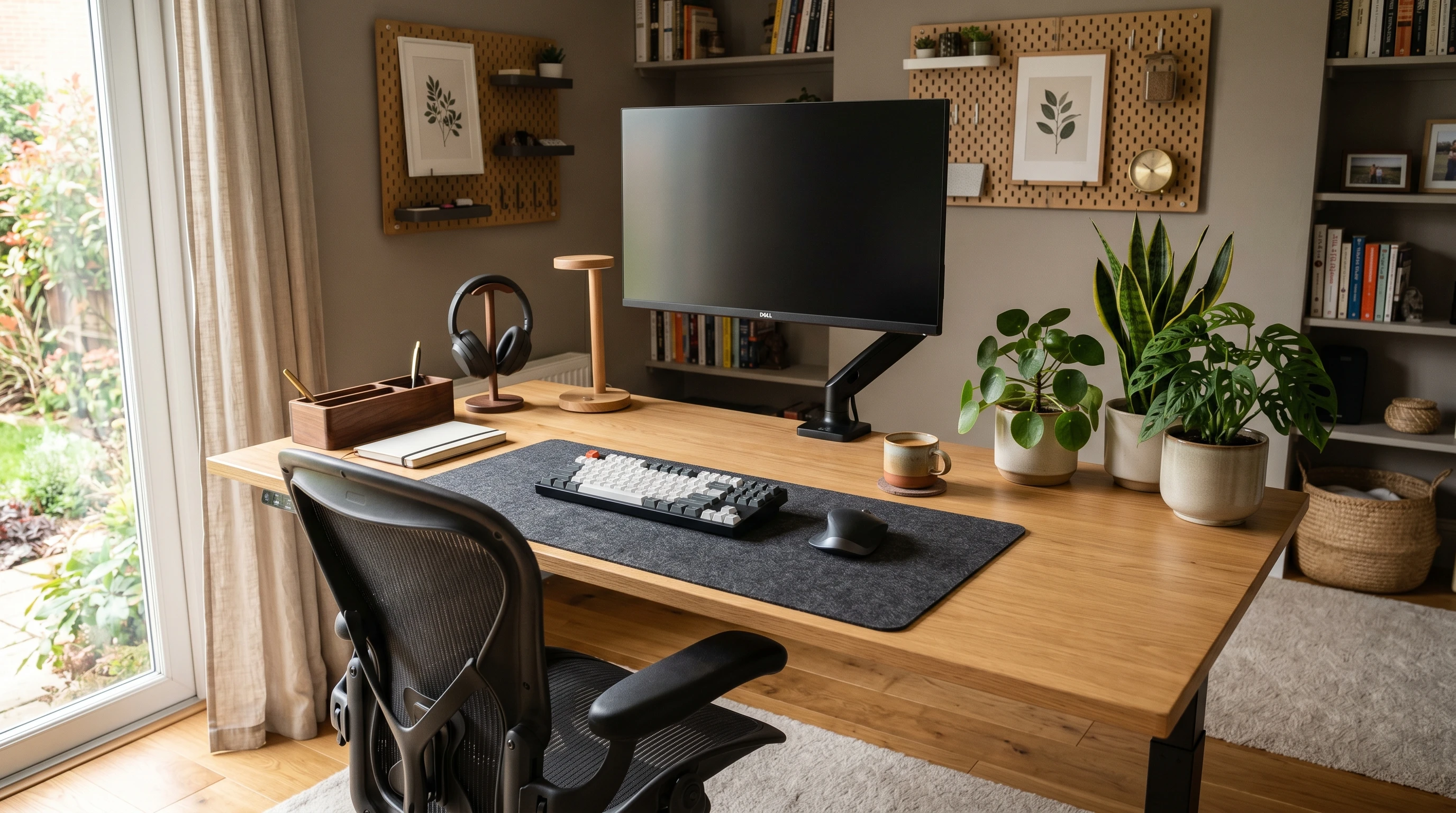
Why Ergonomics Matter in Your Office
It might not seem like a big deal to spend a few hours hunched at your laptop, but poor ergonomics add up fast. The wrong desk or chair, a monitor positioned too high, or a habit of cradling your phone between your shoulder and ear can quickly turn into bigger problems such as wrist pain, tight shoulders, or nagging headaches that just don’t go away.
A workspace that fits your body helps with more than just comfort. It’s pretty handy in keeping you focused and giving you the energy to finish your workday strong. As someone who’s geeked out over office gear for years, I can tell you the impact of even small ergonomic tweaks is surprisingly positive. Over time, proper ergonomics can even cut down the risk of chronic pain or workplace injuries, something I wish I knew back when I first started working in office settings.
7 Top Office Ergonomic Mistakes (and How to Avoid Them)
Of all the issues I run into consulting on home offices, these are the mistakes that come up the most often. If you recognize yourself in any of these, you’re not alone.
- Chair Too Low or Too High: If your feet dangle or you’re hunched forward to reach your keyboard, your chair is set at the wrong height. Your feet should always be flat on the floor (or on a footrest) and your knees should be roughly level with your hips.
- Monitor Positioned Incorrectly: Monitors that are too high, too low, or off to the side leave your neck and shoulders working overtime. The top of the screen should be at or slightly below eye level and about an arm’s length away to prevent squinting or bending forward.
- Keyboard and Mouse Placement: If your elbows are flared out or your wrists are bent, your input devices need adjusting. Keep your keyboard and mouse close, at elbow height, and make sure you’re not reaching or twisting unnecessarily.
- Sitting for Too Long: Even the perfect chair won’t protect you from staying glued to your seat. Staying in one position for hours can stiffen joints and slow down circulation. Regular breaks, at least once every hour, do wonders.
- Poor Lighting: Straining to see the screen or paperwork often leads to leaning in and squinting, which affects posture and can trigger headaches. Aim for a mix of natural and artificial light and position it to avoid glare.
- Ignoring Arm and Wrist Positioning: Wrists should stay in a neutral position, not angled up or down. Repeated awkward positions can lead to carpal tunnel problems or general discomfort.
- Lack of Movement and Stretching: Sticking to a chair all day makes muscles tighter and more prone to aches. I like to keep a quick list of stretches or simple exercises next to my desk and set reminders to move.
Quick 5-Step Guide to Setting Up an Ergonomic Workspace
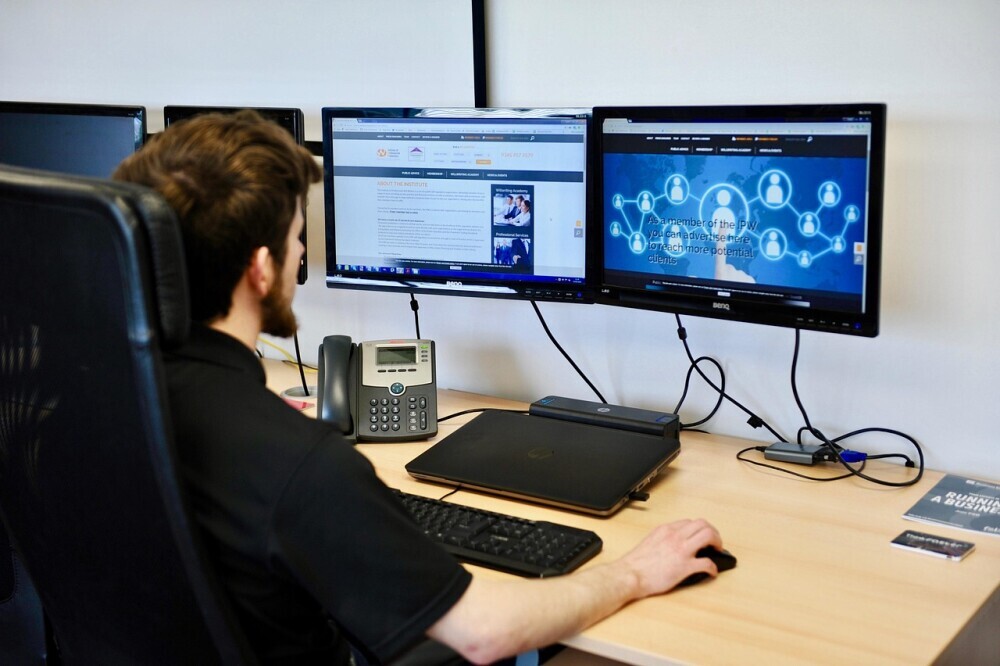 Nailing down your desk setup doesn’t have to mean buying expensive gear. Often, it’s about adjusting what you already have. Here’s a straightforward checklist you can use to make your workspace more comfortable and supportive:
- Check Your Chair: Adjust your seat height so your feet rest flat and your thighs are parallel to the floor. Use a rolled-up towel for lower back support if your chair doesn’t offer lumbar support.
- Position Your Monitor: Center your monitor with your body and set the top of your screen at eye level. If you use a laptop, try a riser or even a stack of books and use an external keyboard and mouse.
- Set Up Input Devices: Your keyboard and mouse should be close enough that your elbows stay tucked in, not reaching out or twisted.
- Add Support With Accessories: A footrest, wrist rest, or an adjustable desk lamp can help fill in gaps where your main furniture falls short.
- Take Frequent Breaks: Set a timer to stand, stretch, and walk around regularly. It’s a super important habit to protect your body and freshen up your mind.
It can also be helpful to pay attention to how you feel as you work. Noticing tiny annoyances early lets you tweak things before they balloon into big problems. Even writing down or sketching your current setup can help you spot issues you didn’t notice before. Checking in on your workspace each week sets you up for long term comfort and productivity.
Common Signs Your Ergonomics Need Adjusting
Most people don’t realize their setup is off until discomfort shows up. If you’re noticing any of the following, it’s worth taking a closer look at your workspace:
- Persistent neck, shoulder, or lower back pain after working
- Tingling or numbness in hands or fingers
- Frequent headaches, eyestrain, or trouble focusing
- Soreness in wrists, especially after typing or using a mouse for long periods
- Fatigue that seems to get worse as the day goes on
5 Real-World Fixes and Tools That Help
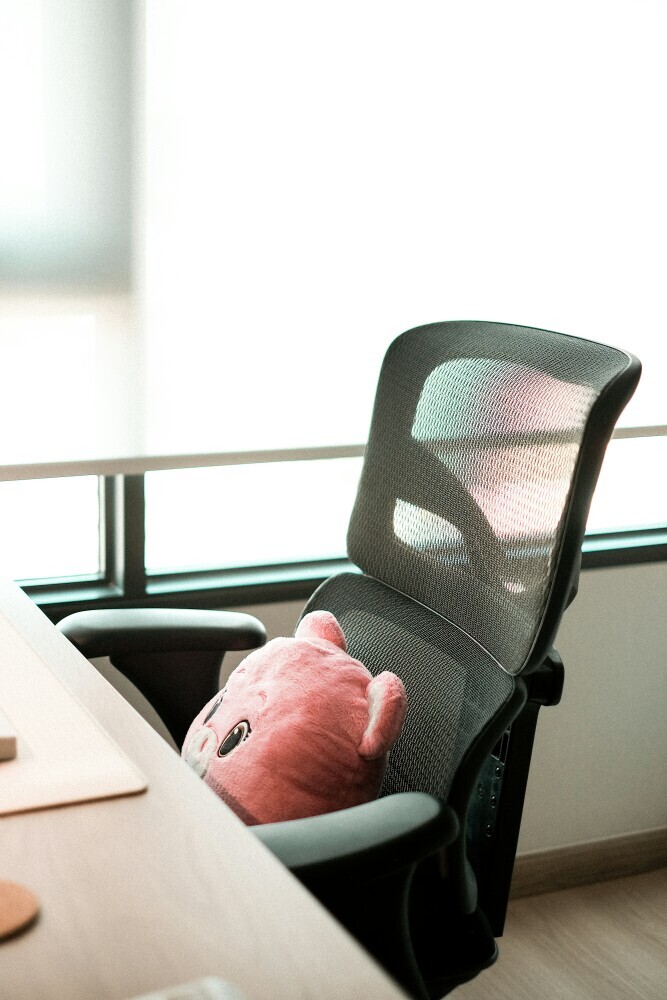 I’ve tested pretty much every type of accessory and furniture option out there. Here are a few tried-and-true fixes for office pain points:
- Pillow (or rolled-up towel) for Lumbar Support: Super cheap and surprisingly effective for supporting your lower back.
- Laptop Riser and External Keyboard/Mouse: Even a stack of books will work as a riser if you’re on a budget.
- Desk Lamp With Adjustable Head: Position your light source to avoid shadows or glare directly on your screen.
- Standing Desk or Converter: These let you mix up sitting and standing, which keeps your back and legs far happier.
- Ergonomic Mouse and Keyboard: Worth checking out if you do tons of typing or clicking; your wrists will thank you later.
Other Factors That Play Into Good Ergonomics
You don’t have to overhaul your whole workspace in one go. Tackling one thing at a time and listening to your body goes a long way. I recommend starting simple, like repositioning your monitor or setting reminders for stretch breaks, and adding tools only when you see you need them.
Sometimes, small environmental tweaks make a noticeable difference, too:
- Switching up your seat cushion for added comfort
- Using plants or organization trays to cut down visual clutter and help your mind stay clear
- Swapping harsh overhead bulbs for warmer, indirect light sources to keep eyes happier
- Moving your workspace closer to a window for natural light and a boost in mood and productivity
Frequently Asked Ergonomics Questions
Even after years of helping people create healthier workspaces, I still get tons of great questions about what works best. Here are some common ones:
Q: How high should my desk be?
A: The perfect height leaves your elbows at a 90-degree angle when typing, with your hands comfortably resting and your wrists straight. Adjustable desks make this easier, but you can use a keyboard tray or tweak your chair if needed.
Q: What kind of chair do I need for good ergonomics?
A: Look for a chair that lets you adjust seat height, backrest tilt, and armrests. If you’re using a dining chair or another nonadjustable seat, use cushions or supports to mimic the ergonomic features.
Q: Is standing while working better than sitting?
A: Switching between the two is ideal. Standing all day can be just as tough as sitting, but mixing it up keeps your body engaged and lowers risks of stiffness and fatigue.
Q: What quick fix helps the most with discomfort?
A: If you pick just one thing, take regular breaks to stand, stretch, and move. Even a few minutes away from your screen every hour can cut down on discomfort in a big way.
Why It Pays to Address Ergonomics Early
Catching ergonomic issues early just makes life easier. Minor tweaks like changing your monitor height or adding a footrest can stop small annoyances from snowballing into bigger, longterm problems. I’ve seen folks go from constant aches to feeling great at their desk in a matter of days with just a few simple adjustments. Upgrading your workspace isn’t just about comfort; it’s a worthwhile investment in your well-being and how much you genuinely enjoy your workday. Even if your setup isn’t fancy, a few changes create a work environment where you can stay productive and happy, day after day. Plus, when you set time aside to tune up your workspace, you send a message to yourself and others that your health is a priority—and that’s something worth celebrating.
Having noticed some common signs like low back pain, neck, pain, and eye strain, it was easiest and most effective to adjust my monitor, take frequent breaks and later purchasing this FlexiSpot standing desk. Share in the comment section below what common mistakes you were able to avoid and how.